A lot of teams like yours already use AI tools like Gemini, Claude, and ChatGPT in their day-to-day work. But when it comes to OKRs and executing strategy, there’s still a gap in AI OKR tracking, especially between managing that strategy and getting the help of your preferred AI assistant to make the most of it.
We’ve changed that.
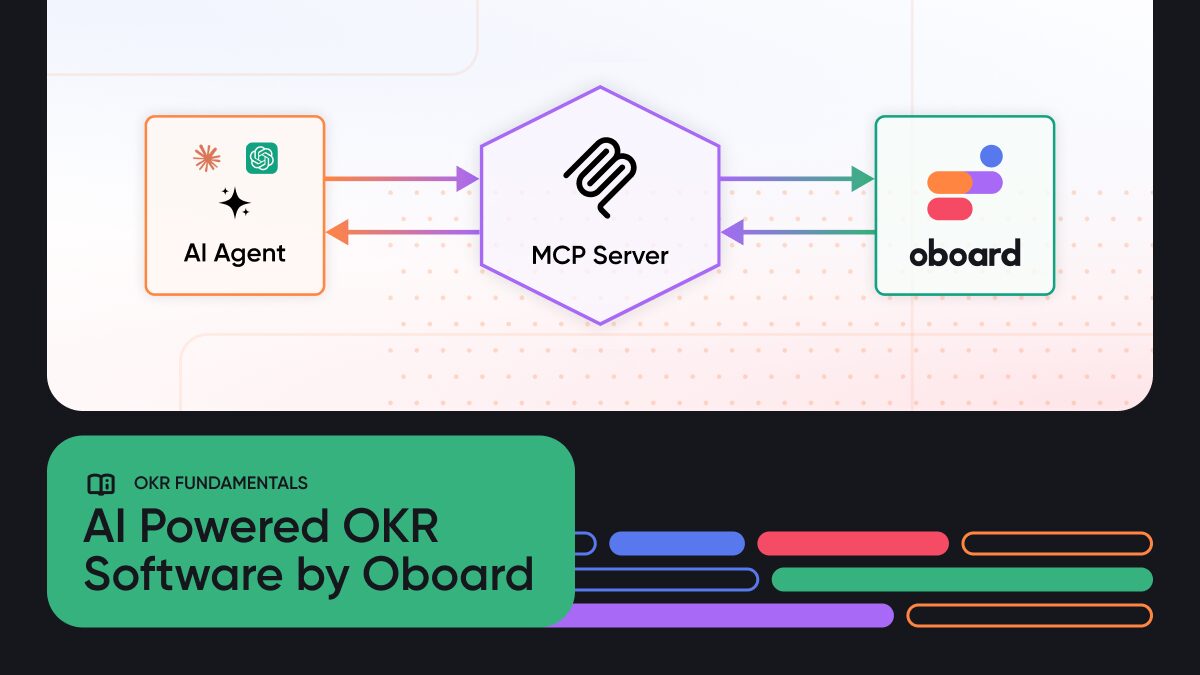
With the new AI integration via the MCP (Model Context Protocol) server, Oboard becomes an AI-enabled strategy workspace: essentially an AI OKR software that plugs into tools people already live in. Your favorite AI assistant can now access your strategy with real OKR + KPI data directly, and also help you work with it in a meaningful way.

What’s New: Oboard MCP Integration
We’ve added MCP integration to Oboard, so it now works as an AI OKR tracking tool. It connects your workspace directly to MCP Server-ready AI tools like Claude and ChatGPT. That means your AI isn’t guessing anymore or missing important context from copied data. It’s working with your actual data, directly from Oboard.
With this new integration, your AI assistant can:
- check all your strategic goals and success metrics for alignment across the whole organization
- pull your OKRs statuses and updates straight from Oboard
- Aggregate recent check-ins and updates for a holistic picture
- work with your strategy as it evolves, not as a one-time snapshot.
Before this, getting useful output from AI meant doing a bit of setup every time: copying data, adding context, explaining what’s going on. Now, that step is gone. Your AI already knows what you’re working on, so you can skip the setup and go straight to asking better questions or getting useful outputs.
One-time Setup Guide
Connecting your AI assistant to Oboard is fairly straightforward, but there are a couple of moving parts worth understanding to avoid getting stuck halfway.

At a high level, you’re connecting your Oboard workspace to your AI tool through MCP. That connection is what allows your AI to access your OKRs, check-ins, and progress data directly.
Steps to get you started:
- First, you grab your MCP server URL from Oboard: https://mcp.oboard.io/mcp. This is how you securely expose your workspace data.
- Then, inside your preferred AI tool, you add Oboard as an MCP source.
- Once connected, you authorize access so the AI can read only your workspace data.
- After that, you’re set — your AI can now query your OKRs in real time.
If you’re using Claude, this usually means configuring MCP in your local setup (via the Claude desktop config). For ChatGPT, it’s simply adding the MCP endpoint by activating “developer mode” so it can connect to Oboard the same way.
Check here to read the full guide on connecting your AI assistant to your Oboard workspace.
AI OKR Tracking: How It Works in Practice Using ChatGPT with Real Scenarios
Let’s see some real examples and how to use the MCP Oboard integration in ChatGPT. But first, we need to confirm you have integrated successfully.
Once you’re connected and open a new chat, you should see the “Developer mode” clearly on the chat module. Click the plus (+) icon and navigate to “More”. You should see “Oboard Dev,” select it to directly connect your OKR data to your current chat.

Scenario 1
Now that you’re connected, we can begin prompting. For this example, we’ll use the scenario below:
Say you’re heading into a weekly review or leadership meeting. Normally, you’d have to scan through multiple OKRs, read updates, check progress trends, and try to piece together what needs attention.
With the MCP integration, you can simply ask:
“Look at all current OKRs and recent check-ins.
Identify anything that’s at risk or off track.
Summarize and explain why it’s at risk based on recent updates, and suggest what needs attention next.”

Because your AI is already connected to Oboard, it doesn’t need extra context. It works directly with your live data. What you get back is more than a simple summary; it’s something closer to a quick diagnostic you could present at your review meeting:
- which objectives are at risk
- what’s causing the issue (missed check-ins, blockers, slow progress)
- patterns across teams
- and what likely needs attention next
The value is instantly obvious; you’ve not only saved precious time, you’ll also be going into the meeting with a clearer view of what’s happening.
Scenario 2
Here’s another Scenario: Let’s say you’re not just interested in progress, you also want to understand how engaged teams are with their OKRs.
- who’s actively updating
- who’s quiet
- where momentum is building or slowing down
That’s not something you can quickly scan for. You’d have to go through check-ins, ownership, update frequency, etc.
With MCP, you can just ask:
“Analyze all OKRs and check-ins across teams.
Show me which teams or individuals are highly engaged and which ones are not. Highlight patterns like missed check-ins, irregular updates, or low activity.
Also, point out where engagement might become a risk to execution.”

You start to see things you’d normally miss. Things like who’s consistently showing up and who’s coordinating work across teams. Where updates are happening, but nothing is really moving. It’s not something you’d catch from a quick scan, and definitely not without digging through multiple check-ins. Here, it just surfaces on its own, on command.
Getting Started With Claude
The examples above show what this can look like inside ChatGPT once Oboard is connected through MCP. With Claude, the idea is similar. We’ve already packaged some of these workflows into ready-to-use Claude Skills, so you don’t have to build every prompt from scratch. That’s useful because the real value of this integration lies in knowing what to ask once the connection is in place.
Introducing Claude Skills
To make getting started easier, we’ve created Claude Skills — ready-to-use workflows designed specifically for OKR teams who use Claude as their go-to AI assistant.
These are practical, real-world use cases you can run immediately, such as:
- Weekly OKR summaries
- Check-in reports
- Alignment analysis
Instead of figuring out what to prompt, you can start with structured workflows that already reflect how teams manage OKRs in Oboard. We’ve packaged these workflows into downloadable Claude Skills so you can start using them right away. If you’re already using Oboard, this is the fastest way to bring AI into your OKR process without changing how your team works.
AI OKR Software: Improve Your Strategy Execution
AI is already part of how teams think and communicate. That part isn’t new. What hasn’t really changed — until now — is how strategy gets executed with the help of AI. Updates, reports, alignment checks… most of that is still manual, or at least more manual than it should be. With MCP integration, that changes. You spend less time collecting updates and formatting reports, and more time understanding what’s truly happening within your organization.
If you want to see how that plays out in real workflows, you can download the Claude Skills and try them out for yourself.
Prefer a guided walkthrough? Book a demo with Iryna, our Customer Success Manager, and she’ll show you exactly how to connect your AI assistant, use the Claude Skills, and make this part of your day-to-day workflow. If you’re looking for a KR software with AI goal suggestions or structured workflows, you can get started right away with the Oboard OKR app.